

By [Manoj Damor]
If you have been developing with Laravel for any length of time, you are likely familiar with the “DRY” principle: Don’t Repeat Yourself. It is the golden rule of software engineering. We apply it religiously to our PHP classes, creating services, traits, and helpers to ensure logic exists in only one place.
However, when it comes to the frontend—specifically our Blade views—that discipline often falls apart.
How many times have you copy-pasted the same chunk of HTML for a Bootstrap modal? How often have you rewritten the same 10 lines of code for a form input field, ensuring the label, the validation error message, and the old() value retention are all correct?
If the answer is “too often,” then your views are likely cluttered, difficult to maintain, and prone to inconsistency.
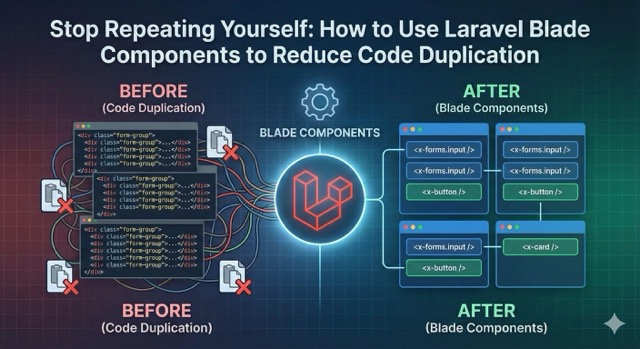
The solution was introduced in Laravel 7 and perfected in later versions: Blade Components.
In this guide, we will dive deep into how to use Blade Components to refactor your UI, drastically reduce code duplication, and make your application easier to maintain.
The Problem with @include and Copy-Pasting
Before Components, Laravel developers relied heavily on the @include directive. While @include is useful, it has limitations. It is essentially a “dumb” copy-paste operation. Passing data to an included view requires an associative array, which can look messy and doesn’t offer strict typing or easy default values.
Furthermore, logic often leaks into these partials. You might find yourself writing raw PHP inside a partial just to determine if a button should be red or blue based on a status variable.
Blade Components solve this by bringing the power of object-oriented programming to your views. They function similarly to components in modern JavaScript frameworks like Vue.js or React but are rendered entirely on the server.
Types of Components: Class-Based vs. Anonymous
Laravel offers two ways to write components. Understanding when to use which is the first step in reducing duplication.
- Class-Based Components: These consist of a PHP class (where logic, data manipulation, and public properties live) and a Blade view (the HTML). These are perfect for complex UI elements that require data processing before rendering.
- Anonymous Components: These are defined only by a Blade file. They are lightweight and perfect for “dumb” UI elements like buttons, badges, or form inputs that don’t require complex background logic.
Let’s explore how to use these to clean up your code.
Case Study 1: The Ubiquitous “Button” (Anonymous Components)
Let’s look at a classic example of code duplication. In a Tailwind CSS project, a primary button might look like this:
HTML
<button type="submit" class="inline-flex items-center px-4 py-2 bg-gray-800 border border-transparent rounded-md font-semibold text-xs text-white uppercase tracking-widest hover:bg-gray-700 active:bg-gray-900 focus:outline-none focus:border-gray-900 focus:ring ring-gray-300 disabled:opacity-25 transition ease-in-out duration-150">
    Save Changes
</button>
That is a massive string of classes. If you have this button in 50 different files and you decide to change the border radius from rounded-md to rounded-lg, you have to find and replace it in 50 places.
The Solution
We can create an anonymous component. Create a file at resources/views/components/button.blade.php.
HTML
@props(['type' => 'submit'])

<button type="{{ $type }}" {{ $attributes->merge(['class' => 'inline-flex items-center px-4 py-2 bg-gray-800 border border-transparent rounded-md font-semibold text-xs text-white uppercase tracking-widest hover:bg-gray-700 active:bg-gray-900 focus:outline-none focus:border-gray-900 focus:ring ring-gray-300 disabled:opacity-25 transition ease-in-out duration-150']) }}>
    {{ $slot }}
</button>
The Breakdown
-
@props: We define a default type of “submit”. If the user doesn’t specify a type, it defaults to submit. -
$attributes->merge(): This is the magic method. It allows you to define default classes but allows the developer to override or add to them when using the component. If you pass aclass="mb-4"when using the component, it will be added to the default list, not replace it. -
{{ $slot }}: This variable represents the content passed inside the component tags.
The Usage
Now, your view files look like this:
HTML
<x-button>
    Save Changes
</x-button>

<x-button type="button" class="mb-4">
    Cancel
</x-button>
You have just turned 10 lines of HTML into 3, and if you ever need to change the styling, you do it in one file.
Case Study 2: Complex Form Inputs (Class-Based Components)
Forms are the biggest source of code duplication in web applications. To implement a proper input field, you usually need:
- The
<label>. - The
<input>tag. - The
valueattribute handlingold()data (for when validation fails). - The error message display (e.g., “The email field is required”).
- CSS classes to turn the border red if there is an error.
Repeating this logic for every field in your application is a nightmare. Let’s solve this with a Class-Based component.
Run the command:
php artisan make:component Forms/Input
This creates:
app/View/Components/Forms/Input.phpresources/views/components/forms/input.blade.php
The Class Logic
In the PHP file, we define what data the component needs.
PHP
namespace App\View\Components\Forms;

use Illuminate\View\Component;

class Input extends Component
{
    public $name;
    public $label;
    public $type;

    public function __construct($name, $label, $type = 'text')
    {
        $this->name = $name;
        $this->label = $label;
        $this->type = $type;
    }

    public function render()
    {
        return view('components.forms.input');
    }
}
The View Logic
Now, we handle the messy HTML in the blade file.
HTML
 <div class="mb-4">
    <label for="{{ $name }}" class="block text-gray-700 text-sm font-bold mb-2">
        {{ $label }}
    </label>

    <input
        type="{{ $type }}"
        name="{{ $name }}"
        id="{{ $name }}"
        value="{{ old($name) }}"
        {{ $attributes->class([
            'shadow appearance-none border rounded w-full py-2 px-3 text-gray-700 leading-tight focus:outline-none focus:shadow-outline',
            'border-red-500' => $errors->has($name)
        ]) }}
    >

    @error($name)
        <p class="text-red-500 text-xs italic mt-2">{{ $message }}</p>
    @enderror
</div>
The Payoff
Look at how concise your create/edit forms become.
Before:
HTML
<div class="mb-4">
    <label for="email" class="block text-gray-700 text-sm font-bold mb-2">Email Address</label>
    <input type="email" name="email" id="email" value="{{ old('email') }}" class="shadow appearance-none border rounded w-full py-2 px-3 text-gray-700 leading-tight focus:outline-none focus:shadow-outline @error('email') border-red-500 @enderror">
    @error('email')
        <p class="text-red-500 text-xs italic mt-2">{{ $message }}</p>
    @enderror
</div>
After:
HTML
<x-forms.input name="email" label="Email Address" type="email" />
We have reduced the code footprint by roughly 80%. More importantly, we have standardized the behavior of inputs across the entire application. If you decide later that you want all error messages to be bold, you change it in one file.
Case Study 3: Layouts as Components
For years, Laravel developers used @extends('layouts.app') and @section('content'). While this works, Laravel now encourages using components for layouts as well. This provides a more unified mental model—everything is a component.
Create resources/views/components/layout.blade.php:
HTML
<!DOCTYPE html>
<html lang="en">
<head>
    <title>{{ $title ?? 'My App' }}</title>
    </head>
<body>
    <header>
        <nav>...</nav>
    </header>

    <main>
        {{ $slot }}
    </main>

    <footer>...</footer>
</body>
</html>
Now, your page views become cleaner:
HTML
<x-layout title="Dashboard">
    <h1 class="text-2xl font-bold">Welcome Back!</h1>
    <p>Here is your overview.</p>
</x-layout>
This approach allows you to pass data (like the page title) as simple attributes rather than using @section directives.
Advanced Technique: Named Slots for Flexible Content
Sometimes, a component needs more than just one insertion point. Consider a “Card” component that has a header, a body, and a footer.
The {{ $slot }} variable handles the main body, but what about the header and footer? We use Named Slots.
The Component (resources/views/components/card.blade.php):
HTML
<div class="border rounded shadow-sm">
    @if (isset($header))
        <div class="bg-gray-100 px-4 py-2 border-b">
            {{ $header }}
        </div>
    @endif

    <div class="p-4">
        {{ $slot }}
    </div>

    @if (isset($footer))
        <div class="bg-gray-50 px-4 py-2 border-t text-sm">
            {{ $footer }}
        </div>
    @endif
</div>
The Usage:
HTML
<x-card>
    <x-slot name="header">
        User Profile
    </x-slot>

    <p>Name: John Doe</p>
    <p>Email: john@example.com</p>

    <x-slot name="footer">
        Last updated: 2 mins ago
    </x-slot>
</x-card>
By using isset, we make the header and footer optional. This flexibility allows one component to serve multiple purposes: a simple content box, a dashboard widget, or a complex data display.
Integrating with Alpine.js
Blade components shine even brighter when combined with Alpine.js. Since both Blade and Alpine are designed to live directly in your HTML, they complement each other perfectly for handling UI state (like dropdowns or modals).
Imagine a “Dropdown” component. The open/close state logic is JavaScript, but the structure is HTML.
HTML
<div x-data="{ open: false }" class="relative">
    <button @click="open = !open" class="btn-primary">
        {{ $trigger }}
    </button>

    <div x-show="open" @click.away="open = false" class="absolute z-50 mt-2 w-48 rounded-md shadow-lg bg-white">
        {{ $slot }}
    </div>
</div>
You can now drop a fully functional, interactive dropdown anywhere in your app without writing a single line of JavaScript in your main view files.
Best Practices for Blade Components
While components are powerful, it is possible to over-engineer them. Here are some tips to keep your project healthy.
1. Naming Conventions
Use folders to group components.
-
components/forms/input.blade.php-><x-forms.input /> -
components/layouts/app.blade.php-><x-layouts.app /> -
components/ui/badge.blade.php-><x-ui.badge />
This keeps your global namespace clean and makes it obvious what the component does.
2. Don’t Componentize Everything
If a piece of code is used only once, it probably doesn’t need to be a component. The goal is to reduce duplication, not to fragment your codebase into thousands of tiny files. A good rule of thumb is: The Rule of Three. If you copy-paste code a third time, refactor it into a component.
3. Keep Logic in the Class
If you are using Class-Based components, try to keep the Blade file as “dumb” as possible. If you need to calculate a date format or filter an array, do it in the PHP Class render or __construct method and pass the clean data to the view. This separates concerns and makes testing easier.
4. Utilize the $attributes Bag
Always use {{ $attributes }} on the root element of your component. This ensures that if a developer adds wire:model, class, or data-id to the component tag, it actually gets rendered onto the HTML element. Without this, your components will feel rigid and difficult to extend.
Conclusion
Laravel Blade Components are more than just a syntactic sugar; they are a fundamental shift in how we structure modern PHP applications. By treating your UI as a collection of reusable, self-contained blocks, you inevitably write code that is:
- Cleaner: View files focus on structure, not implementation details.
- Maintainable: A design change in a button propagates everywhere instantly.
- Robust: Logic for validation errors and old input is centralized, reducing bugs.
Hashtags
Use these when sharing the link on social media to reach the developer community.
#Laravel #PHP #BladeComponents #WebDev #CleanCode #Programming #DevTips #FullStack #TailwindCSS #LaravelTips
Leave a Reply