

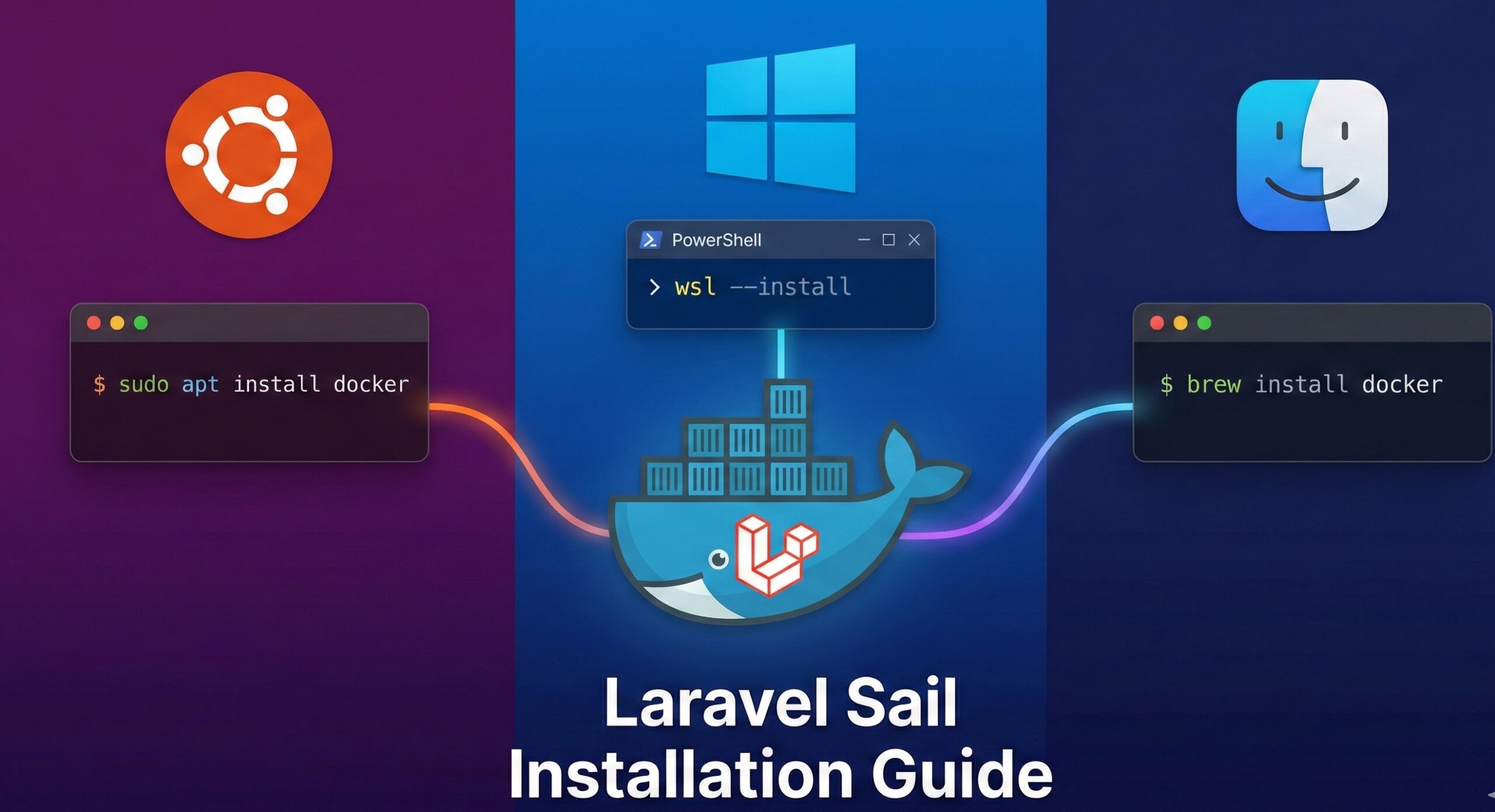
Why Use Docker for Laravel?
Before diving into the installation, it is crucial to understand why this approach is superior to traditional local servers.
- Consistency: Docker ensures that the software versions (PHP, MySQL, Redis) you use locally are identical to those in production.
- Isolation: You can run PHP 8.3 for one project and PHP 7.4 for another without them conflicting.
- Speed: With WSL2 (on Windows) and native Docker support on Mac/Linux, spinning up a project takes seconds.
- Simplicity: You don’t need to manually install PHP, Composer, or MySQL on your local machine. Docker handles it all inside containers.
Prerequisites
Before we begin, you need to ensure your machine is ready. The requirements vary slightly by operating system.
For Windows Users
- Windows 10 (Version 2004 or higher) or Windows 11.
- WSL2 (Windows Subsystem for Linux): This is critical. Docker on Windows runs fastest when using the WSL2 backend rather than the legacy Hyper-V backend.
- Docker Desktop for Windows: Download it from the official Docker website.
For macOS Users
- Docker Desktop for Mac: Download it from the official Docker website.
- Terminal: You will use the built-in Terminal or a replacement like iTerm2.
For Ubuntu/Linux Users
- Docker Engine: You need Docker installed directly on your machine.
- Docker Compose: Ensure the docker compose plugin is installed.
- Curl: A command-line tool for transferring data, usually installed by default.
Phase 1: Installing Docker
If you already have Docker installed and running, you can skip to Phase 2.
1. Installing on Windows (The WSL2 Method)
This is the most complex setup but offers the best performance.
-
Enable WSL2: Open PowerShell as Administrator and run:PowerShell
wsl --installThis command will install Ubuntu by default. Restart your computer when prompted. - Install Docker Desktop: Run the installer. During installation, ensure the “Use WSL 2 instead of Hyper-V” option is checked.
- Configure Docker: Open Docker Desktop settings, go to Resources > WSL Integration, and ensure your default Linux distribution (usually Ubuntu) is toggled ON.
2. Installing on macOS
- Download the
.dmgfile from Docker Hub. Note: Choose “Apple Chip” if you have an M1/M2/M3 Mac, or “Intel Chip” for older Macs. - Drag the Docker icon to your Applications folder.
- Open Docker Desktop and follow the on-screen permission grants.
- Verify it’s running by looking for the whale icon in your menu bar.
3. Installing on Ubuntu
Open your terminal and run the following commands to install Docker Engine:
Bash
# Update existing packages
sudo apt-get update

# Install prerequisites
sudo apt-get install ca-certificates curl gnupg

# Add Docker's official GPG key
sudo install -m 0755 -d /etc/apt/keyrings
curl -fsSL https://download.docker.com/linux/ubuntu/gpg | sudo gpg --dearmor -o /etc/apt/keyrings/docker.gpg
sudo chmod a+r /etc/apt/keyrings/docker.gpg

# Install Docker
sudo apt-get install docker-ce docker-ce-cli containerd.io docker-buildx-plugin docker-compose-plugin

# Add your user to the docker group (so you don't have to use sudo)
sudo usermod -aG docker $USER
newgrp docker
Phase 2: Installing Laravel with Sail
Laravel provides a simple build script that interacts with Docker to create a new project. The beauty of this method is that you do not need PHP or Composer installed on your local machine. Docker will download a small temporary container to handle the installation for you.
Option A: The Default Installation (MySQL, Redis, MeiliSearch, etc.)
This method installs a “kitchen sink” version of Laravel with many services pre-configured.
- Open your Terminal (On Windows, open the Ubuntu terminal, not PowerShell).
- Navigate to the folder where you keep your code (e.g.,
cd ~/Code). - Run the following command:Bash
curl -s "https://laravel.build/my-app" | bashReplacemy-appwith your desired project name.What is happening here?This command downloads a bash script from Laravel’s server and pipes it into your shell. It instructs Docker to pull a PHP image, run composer create-project, and generate the necessary files.
Option B: Customizing Services (Lite Installation)
If you only want specific services (e.g., just MySQL and Redis) to save RAM, you can use the with query parameter:
Bash
curl -s "https://laravel.build/my-app?with=mysql,redis" | bash
Supported services include: mysql, pgsql, mariadb, redis, memcached, meilisearch, minio, selenium, and mailpit.
Phase 3: Starting Your Application
Once the installation command finishes, you will see a message telling you to navigate to your directory.
-
Enter the project directory:Bash
cd my-app -
Start Laravel Sail:Bash
./vendor/bin/sail upTip: To run it in the background (detached mode), use./vendor/bin/sail up -d.
The first time you run this, it may take a few minutes. Docker has to download the images for MySQL, Redis, and the Laravel application runtime. Subsequent starts will be nearly instant.
- Access your site:Open your web browser and go to:http://localhost
You should see the standard Laravel welcome page.
Phase 4: Understanding the Environment
Now that your app is running, it’s important to understand how to interact with it. Since your PHP installation lives inside the Docker container, you cannot just run php artisan commands from your local machine’s terminal (unless you have PHP installed locally, but that defeats the purpose of isolation).
Instead, you use the Sail command wrapper.
The Sail Alias
Typing ./vendor/bin/sail every time is tedious. Let’s create a shortcut.
For Mac/Linux/WSL2:
Add this to your shell configuration file (.zshrc or .bashrc):
Bash
alias sail='[ -f sail ] && bash sail || bash vendor/bin/sail'
Reload your shell: source ~/.zshrc (or .bashrc).
Now you can simply type sail instead of the full path.
Common Sail Commands
| Local Command | Sail Equivalent | Description |
php artisan migrate | sail artisan migrate | Runs database migrations |
composer require ... | sail composer require ... | Installs a PHP package |
npm install | sail npm install | Installs Node dependencies |
npm run dev | sail npm run dev | Compiles frontend assets (Vite) |
mysql | sail mysql | Enters the MySQL CLI |
Phase 5: Deep Dive into docker-compose.yml
Laravel generates a docker-compose.yml file in your project root. This file is the blueprint of your infrastructure. Let’s look at the key sections:
YAML
services:
    laravel.test:
        build:
            context: ./vendor/laravel/sail/runtimes/8.3
        ports:
            - '${APP_PORT:-80}:80'
        environment:
            WWWUSER: '${WWWUSER}'
        depends_on:
            - mysql
            - redis
- laravel.test: This is your main application container. It runs PHP and serves your site.
- ports: It maps port 80 inside the container to port 80 on your host machine (localhost).
- depends_on: ensures the database is ready before the app starts.
If you ever need to change the PHP version, you can modify the build context path in this file and run sail build --no-cache.
Troubleshooting Common Issues
Even with Docker, things can sometimes go wrong. Here are the most common hurdles developers face.
1. “Port 80 is already in use”
The Problem: You try to run sail up but get an error saying the port is allocated. This often happens if you have Apache, Nginx, or Skype running on your host machine.
The Fix:
Open the .env file in your project root and add/change the APP_PORT variable:
Code snippet
APP_PORT=8080
Now, restart Sail, and access your app at http://localhost:8080.
2. Permission Denied (Linux)
The Problem: You see errors about writing to the storage or bootstrap/cache directories.
The Fix:
Docker on Linux can sometimes mess up user permissions. Sail tries to handle this with the WWWUSER variable. Ensure your user is in the docker group (as shown in the installation step) and try rebuilding the image:
Bash
sail build --no-cache
sail up
3. Database Connection Refused
The Problem: Your app cannot connect to MySQL.
The Fix:
- Ensure the container is running (
docker ps). - Check your
.envfile. When using Docker,DB_HOSTmust be the service name, not localhost.-
Correct:
DB_HOST=mysql -
Incorrect:
DB_HOST=127.0.0.1
-
Correct:
4. WSL2 Performance Issues (Windows)
The Problem: The site loads extremely slowly (2+ seconds per page).
The Fix:
You likely cloned your project into the Windows file system (e.g., /mnt/c/Users/…).
Always store your code inside the Linux file system (e.g., ~/code or /home/youruser/code). The file I/O performance across the Windows/Linux boundary is very slow.
Advanced: Installing on an Existing Project
The steps above are for a fresh installation. But what if you have an existing Laravel project you want to move to Docker?
- Navigate to your project.
- Install Sail via Composer (you will need local PHP/Composer for this one step, or use a temporary container):Bash
composer require laravel/sail --dev - Install the Docker scaffolding:Bash
php artisan sail:installSelect the services you need (0 for mysql, 1 for pgsql, etc.). - Start Sail:Bash
./vendor/bin/sail up
Conclusion
Installing Laravel using Docker might feel like a shift if you are used to XAMPP, but the benefits are undeniable. You gain a portable, production-ready environment that works identically across Ubuntu, Windows, and macOS. By using Laravel Sail, you abstract away the complexity of Docker configuration files, allowing you to focus on what matters most: building amazing applications.
Whether you are building a simple blog or a complex enterprise API, starting with Docker ensures your foundation is solid, scalable, and secure.
SEO Tags
- Laravel
- Docker
- Laravel Sail
- PHP
- Web Development
- Ubuntu
- Windows
- macOS
- WSL2
- Backend Development
- Docker Compose
- Software Installation
- Development Environment
- MySQL
- Programming Tutorial
Categories
If you need to assign the post to specific categories on your blog:
- Tutorials
- Laravel
- DevOps / Server Management
- Web Development
Social Media Hashtags
Best for sharing the post on X (Twitter), LinkedIn, or Instagram.
#Laravel #Docker #PHP #WebDevelopment #Coding #Programming #Ubuntu #Windows #MacOS #LaravelSail #DevOps #TechTutorial #OpenSource
Long-Tail Keywords (For Meta Keywords/Description)
- Install Laravel with Docker
- Laravel Sail tutorial
- How to setup Laravel on Windows WSL2
- Laravel Docker setup guide
- Docker for PHP developers
Leave a Reply