
In today’s digital landscape, security isn’t optional—it’s foundational. If your website is still relying on the insecure HTTP protocol, you are actively deterring visitors, jeopardizing user trust, and even risking poor search engine rankings. The solution? SSL/TLS encryption, which enables the secure HTTPS protocol.
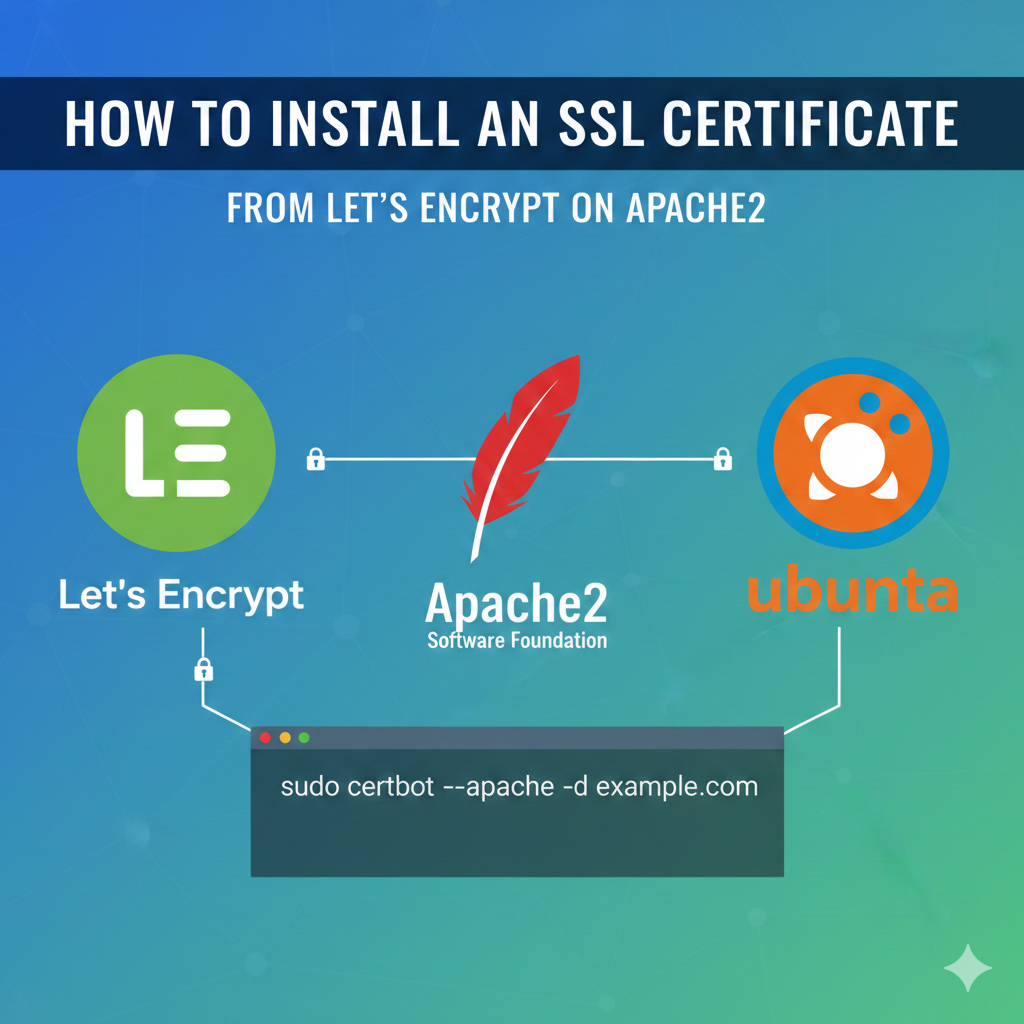
For years, obtaining and managing SSL certificates was a complex, expensive, and often cumbersome process. Thankfully, the introduction of Let’s Encrypt, a free, automated, and open Certificate Authority (CA), has democratized web security. In this definitive guide, we will walk you through the entire process of installing a free Let’s Encrypt SSL certificate on your Apache2 web server using the recommended tool, Certbot.
We’ll cover everything from the basic prerequisites to the final, automated renewal setup, ensuring your site remains secure 24/7.
I. 🌐 Understanding the Need for HTTPS
Before we dive into the “how,” let’s quickly review the “why.”
A. What is SSL/TLS and HTTPS?
SSL (Secure Sockets Layer) and its successor, TLS (Transport Layer Security), are cryptographic protocols designed to provide communication security over a computer network. When a browser connects to a website over HTTPS (HTTP Secure), the server presents an SSL certificate. This certificate authenticates the server’s identity and initiates an encrypted session.
Without HTTPS, data—like login credentials, personal information, or credit card details—is sent across the internet in plain text, making it vulnerable to eavesdropping and man-in-the-middle attacks. With HTTPS, this data is scrambled, rendering it useless to attackers.
B. Why Let’s Encrypt?
Let’s Encrypt is a non-profit organization providing digital certificates to the public. Their core mission is to make encryption universal.
- Free: Certificates are issued at no cost.
- Automated: The entire process of certificate issuance, verification, and renewal can be handled automatically by software like Certbot.
- Open: It operates on an open standard, fostering community and innovation.
C. The Role of Apache2
Apache HTTP Server (often simply called Apache2) is the most widely used web server software in the world. It is the engine that serves your blog or website content to users. To enable HTTPS, Apache must be configured to use the newly issued SSL certificate on port 443 (the standard port for HTTPS), in addition to the standard HTTP port 80.
II. 🛠️ Prerequisites and Preparation
Before you begin the installation process, you must ensure your server meets these fundamental requirements. Skipping this step is the most common cause of installation failure.
A. Server Access and Permissions
You must have SSH access to your server and root privileges (or use the sudo command) to install software, modify system configurations, and manage services.
B. Domain Name and DNS Configuration
This is critical: Your domain name must be actively pointing to your server’s public IP address.
-
A Record: Ensure your domain (e.g.,
yourblog.com) has an A record set in your DNS provider’s control panel that resolves to your server’s IP address. -
WWW Record: If you plan to secure the
wwwsubdomain (which is highly recommended), ensure a CNAME or A record is also configured forwww.yourblog.com.
C. Functional Apache Virtual Host
Certbot needs a working Apache configuration file to perform its domain validation and automatically insert the necessary SSL directives.
-
Locate Your Vhost File: On Debian/Ubuntu systems, this file is typically found in
/etc/apache2/sites-available/. It might be namedyourblog.com.confor000-default.conf. -
Verify
ServerName: Ensure your configuration file contains theServerNamedirective, and that it exactly matches the domain you want to secure.Apache<VirtualHost *:80> ServerName yourblog.com ServerAlias www.yourblog.com DocumentRoot /var/www/yourblog # Other directives (logs, etc.) </VirtualHost> - Ensure Port 80 is Open: The Let’s Encrypt validation process (specifically the HTTP-01 challenge) requires the server to be accessible on port 80 (HTTP). If you have a firewall (like UFW or iptables), ensure port 80 is open to the public.
III. 📥 Installing Certbot and the Apache Plugin
Certbot is the client that communicates with the Let’s Encrypt server. It is the easiest and most recommended way to install your certificate, as it automates the domain validation and Apache configuration steps.
A. Update the System and Install Dependencies
Start by ensuring your system’s package list is up to date:
Bash
sudo apt update
Now, install the Certbot package and the specific plugin designed for Apache integration. This plugin allows Certbot to read and modify Apache configuration files directly.
Bash
sudo apt install certbot python3-certbot-apache
Note: For other Linux distributions (like CentOS or Fedora), the installation commands might differ, often using
yumordnfinstead ofapt. However, the overall process remains the same.
B. Enabling the SSL Module
While Certbot will handle the specifics, it’s good practice to ensure the core Apache SSL module, mod_ssl, is enabled. It’s often enabled by default, but a quick check ensures everything is in place:
Bash
sudo a2enmod ssl
sudo systemctl restart apache2
IV. 🚀 Obtaining and Installing the SSL Certificate
With Certbot installed and your prerequisites met, obtaining the certificate is a single, powerful command.
A. The Core Certbot Command
Execute the following command, replacing the domain names with your actual domain and its www counterpart.
Bash
sudo certbot --apache -d yourblog.com -d www.yourblog.com
B. What Happens During Execution?
-
Domain Validation: Certbot starts by requesting a certificate for the domains specified (
-d). The Let’s Encrypt CA server then issues a challenge to ensure you control those domains. Using the Apache plugin, Certbot automatically creates temporary configuration files within your Apache Vhost to fulfill this challenge (the HTTP-01 method). - Certificate Issuance: Once the CA server verifies the challenge, it issues the signed SSL certificate and the corresponding private key.
-
Apache Configuration: Certbot then automatically modifies your Virtual Host file. It creates a new Virtual Host block listening on port 443 (HTTPS) and adds the necessary directives:
SSLEngine On-
SSLCertificateFile(points to your new certificate) -
SSLCertificateKeyFile(points to your private key) -
SSLCertificateChainFile(points to the intermediary certificate)
-
Final Prompts: You will be asked to provide an email address for renewal and security notices, agree to the Terms of Service, and finally, you will be prompted about redirection:
- 1: No redirect: Leave the HTTP Virtual Host alone (not recommended).
- 2: Redirect: Automatically configure the existing port 80 Vhost to permanently redirect all HTTP traffic to HTTPS (highly recommended). Choose Option 2.
C. Success Confirmation
If successful, you will see a message similar to this:
Congratulations! You have successfully enabled https://yourblog.com and https://www.yourblog.com

IMPORTANT NOTES:
 - Congratulations! Your certificate and chain have been saved at:
   /etc/letsencrypt/live/yourblog.com/fullchain.pem
   Your key file has been saved at:
   /etc/letsencrypt/live/yourblog.com/privkey.pem
   Your cert will expire on [Date]...
The certificates are stored securely, typically in the /etc/letsencrypt/live/yourblog.com/ directory.
V. 🕵️ Verification and Testing
Installation is only half the battle. You must ensure the setup is correct and secure.
A. Browser Check
Open your web browser and manually type your domain using the insecure protocol: http://yourblog.com.
-
Expected Result: The browser should automatically switch the address to
https://yourblog.comand display the padlock icon, indicating a secure connection. Clicking the padlock should show the certificate details, issued by Let’s Encrypt.
B. Security Audit with SSL Labs
For a more rigorous test, use a third-party tool like Qualys SSL Labs SSL Test. Enter your domain, and the tool will analyze your server’s SSL configuration, grading it from A+ to F. A good, modern configuration (which Certbot usually provides) should earn you an A or A+.
C. Reviewing the Apache Configuration
You can inspect the changes Certbot made to your Apache Vhost file. A new file or a modification to your existing one will now include the HTTPS configuration:
Apache
<IfModule mod_ssl.c>
<VirtualHost *:443>
    ServerName yourblog.com
    # ... other directives ...

    SSLEngine on
    SSLCertificateFile /etc/letsencrypt/live/yourblog.com/fullchain.pem
    SSLCertificateKeyFile /etc/letsencrypt/live/yourblog.com/privkey.pem
</VirtualHost>
</IfModule>
VI. 🔄 Automating Certificate Renewal
Let’s Encrypt certificates are valid for only 90 days. While this short lifespan encourages security best practices and rapid key rotation, it necessitates an automated renewal process. Fortunately, the Certbot installation handles this automatically.
A. The Certbot Cron/Timer Job
When you installed Certbot, it typically set up a cron job (traditional scheduling system) or a systemd timer (modern scheduling system) that runs twice a day. This job executes the following command:
Bash
certbot renew
B. How Automated Renewal Works
-
Check Expiry: The
certbot renewcommand checks all installed certificates. It only attempts to renew those that are due to expire within 30 days. - Perform Validation: For certificates that need renewal, Certbot quietly re-runs the validation process.
- Reload Apache: If a renewal is successful, Certbot executes a hook to gracefully reload the Apache service, ensuring the new certificate is loaded without dropping any connections.
C. Testing the Renewal Process (Dry Run)
You should periodically test the renewal mechanism to ensure it still works correctly. This command simulates the renewal without actually saving new files:
Bash
sudo certbot renew --dry-run
If the test is successful, you will see a message indicating “The dry run was successful.” If it fails, Certbot will provide detailed error messages, allowing you to troubleshoot the issue long before your certificate actually expires.
VII. ⚠️ Common Troubleshooting and Advanced Tips
Even with the ease of Certbot, you might run into minor issues. Here are solutions to common problems and ways to harden your setup.
A. Firewall Issues
If Certbot fails during validation, the most common reason is that the Let’s Encrypt server cannot reach your server on port 80 or port 443.
Solution (UFW Example):
Bash
# Allow HTTP and HTTPS traffic
sudo ufw allow 'Apache Full'

# If you only allowed Apache (Port 80) before, you need to enable 443
# sudo ufw allow 443/tcp

# Check the status
sudo ufw status
B. Virtual Host Configuration Errors
If Certbot cannot find or parse your Virtual Host, it will fail. Ensure:
- Your Vhost file is enabled:
sudo a2ensite yourblog.com.conf - Apache is running without errors:
sudo apache2ctl configtest
C. Securing Your Configuration Further
Certbot provides a good base, but for maximum security (an A+ rating on SSL Labs), you might want to manually adjust the SSL configuration provided by Certbot:
-
HSTS (HTTP Strict Transport Security): This security mechanism forces browsers that have visited your site once over HTTPS to only visit your site over HTTPS in the future, even if someone tries a plain HTTP link. Add this to your port 443 Vhost:Apache
Header always set Strict-Transport-Security "max-age=63072000; includeSubDomains; preload" -
Stronger Ciphers: You can override Certbot’s default ciphers to use an even more restricted and modern set. This is often done by configuring global settings in
/etc/letsencrypt/options-ssl-apache.conf.
VIII. ✅ Conclusion: A More Secure Web
Congratulations! You have successfully installed and configured a free, world-class SSL certificate from Let’s Encrypt on your Apache2 web server.
By completing this process, you have achieved several key goals:
- User Trust: Visitors see the secure padlock, instilling confidence.
- Data Protection: All information exchanged with your site is now encrypted.
- SEO Benefit: Google explicitly uses HTTPS as a minor ranking signal.
Tags: Let’s Encrypt, SSL, Apache2, Certbot, HTTPS, Linux, Ubuntu, Web Security, SSL Installation, Free SSL, TLS
Leave a Reply